- Advanced data recovery Center in the World
- How to use DERescue Data Recovery Master
- Add data and scan the lost files. Clicking "Data" button on toolbar can open the "Select data source" window. DeRescue provides some working modes to recover data. You can select the best recovery method
- Advanced recovery setting guide :
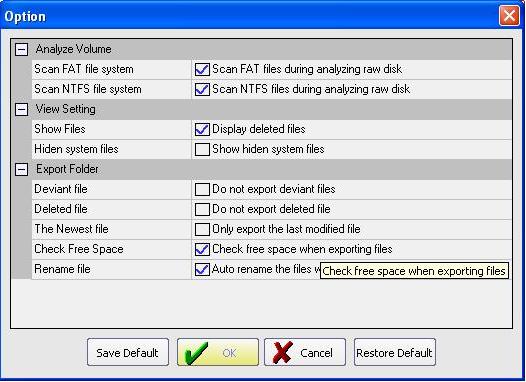
- 1: Options: Setup the options for advanced recovery
- Setup parameters for advanced recovery.
- Analyze Volume :
- 1. Scan FAT file system : Scan the FAT files if a RAW disk or partition is loaded.
- 2. Scan NTFS file system: Scan the NTFS files if a RAW disk or partition is loaded.
- View Setting :
- 1. Show Files: Show the files that are marked with X
- 2. Hiden system files: The system's files are not user data, they are not need to be recovered.
- Export Folder :
- 1. Deviant Files: Do not export the files that are marked with ?. If your files are lost partition and you want to export the normal files, you can select the function
- .
2. Deleted Files: Do not export the files that are marked with X. If your files are lost partition and you want to export the normal files, you can select the function.
- 3. The Newest Files: Only export the newest file. In FAT file system, there might be files with same names. If you want to export the file with latest modification time, you should select the function.
- 4. Check Free Space : Check free space when exporting files.
5. Rename file: Rename the files' if their names are same when exporting.
- 2 : Attribute parameters :
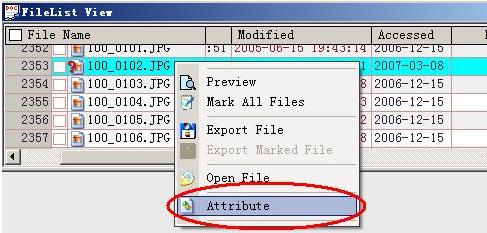
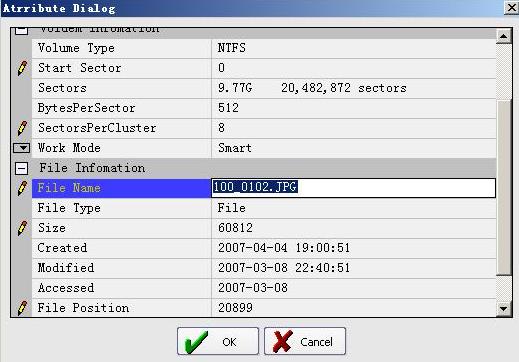
- Display a directory or a file's attribute. If you want to change a file's name or size, you can right-click the file and select the "Attribute" menu in List view.
- File name : If you want to rename a file, you can click the item and edit it. Change the file name in memory. It does not change the source disk.
- File size : Sometimes you can change the file size for advanced recovery.
- File position : The starting sector of the file.
- Deleted : If a file is marked deleted, it will show X on the Folder view and List view.
- Start sector of volume : An important parameter of a volume. It is the starting position of the partition.
- Sector per clustor : An important parameter of a volume.
- Work mode : If the parameter is equal to "Smart", DeRescue will scan all sector of the source disk. If the parameter is equal to "Professional", DERescue will ask user to set the scanning range. Sometimes a bad sector can be skipped if the scanning range is pre-set.
- 3 : Mirror :
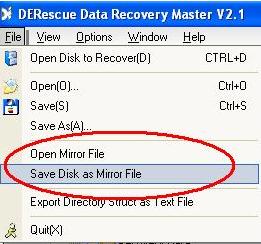
- You can make a disk or drive to a mirror file via Mirror function. The mirror is coping data sector by sector. Clicking the "File" menu and selecting the "Save Disk as Mirror File" menu can open mirror window.
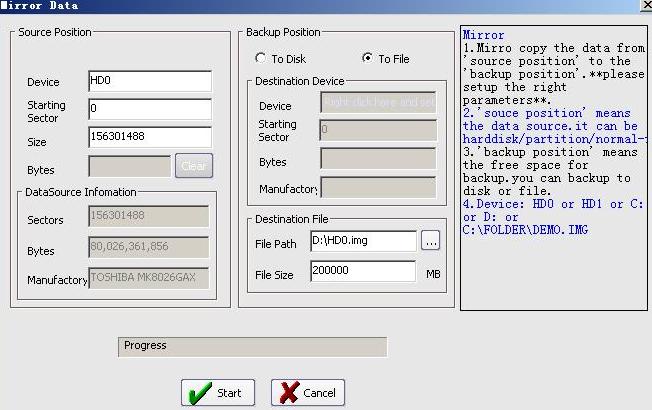
- Source position: The source data that you want to backup.
- 1 Device: The source that you want to backup can be disk or partition or a mirror file. Right clicking the input window, you can select the disk or drive letter.
.
- 2 Starting Sector: The source that you want to backup can be disk or partition or a mirror file. Right clicking the input window, you can select the disk or drive letter.
- 3 Size: The quantity of sectors need to be copied.
- To disk: Coping source to a disk or a partition.
- 1 Starting Sector: The destination start sector number for writting. Mirror will write data base on the sector number. The starting sector of destination disk. Mirror will start to write data base from this sector.
- 2 To file: Coping source to a file.
File path: The destination file's path name. Click the "..." button and select a new file as the target file.
- 3 File size: The max size of file, if the source is bigger than the file size, the mirror file will be divided into several files and every file size is equal to the max file size..
- Mirror steps :
- 1. set the source disk or drive;
- 2. select To Disk or To File type;
- 3. setup the destination disk or file;
- 4. click Start button.
- WHY CHOOSE IT
- Our software scans very fast.
- Its high-performance algorithms for scanning engine save you a lot of time in recovery.
- It can scan FAT32 and NTFS directory structure during scanning.
- When the format of a partition is changed, it can be recovered by the program without formatting the partition back to the original format, in turn avoiding more damages.
- The product organizes the directory structure in the memory during scanning without changing the data in the source disk. It is a very safe recovery tool
- Friendly tips: Please do not write new files into a partition to be recovered, do not format a partition or repartition it and do not recover data into a partition to be recovered to avoid a secondary data damage. Please download our software onto a partition or disk not to be recovered before performing recovery operations
- * 200,000+ satisfied customers!
- * Speed is very fast than other
- * Very simply and easy to use
- * Very powerful funtion to use
- * Recover lost files only 3 stages
- * Free tech support (7*24)
- * Price is well worth
- * 30 Day money back
- How to Add data to scan
- Deleted files recovery
- Formatted partition recovery
- Lost partitions recovery
- GHOST Recovery
- How to view data
- How to get lost data
- Advanced recovery use
- WEB Editor:
- DERescue is a very powerful software to recover lost data. Please do not write any data to the partition or disk that you want to recover
- User Reviews :
- Strengths : It worked to recover the data I deleted from my external USB backup drive after my computer crashed.
- Overall Evaluation: Overall it worked. I downloaded it and scanned to find data, and it did it. Before I could recover anything, I had to register it. That ment paying $60 to get the registration key. I think it was well worth the money. Reviewed from pcworld
- Changed partition recovery
- Lost partition recovery
- Format partition recovery
- Repartition recovery
- Missing partition recovery
- Active partition recovery
- Delete recovery partition
- Disk partition recovery
- Ntfs partition recovery
- FAT partition recovery
- Computer recovery
- Computer data recovery
- Computer disaster recovery
- Best Computer recovery software
- it's your best pc recovery software

- Data recovery resource
- Free Software Download
- File Recovery
- Hard drive recovery software
- Encryption software
- Format data recovery software